
Front LCD Panel
- Details
- Written by: JC
- Category: Electronic Projects
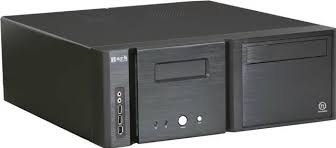
I’ve always wanted to implement an ATmega328P with an LCD screen as a replacement for a propriety one. I envisioned something more open to interface with and had USB connectivity. So one day browsing through Facebook Marketplace, I found someone selling a ThermalTake Bach for $10 with an LCD screen cutout. The case, of course didn’t have the LCD in there anymore, so my chance had arrived.
I then, naturally, reached for my breadboard and did a quick prototype to get everything working. Once complete, I then started on the firmware. Through a little trail and error, this is what I came up with:
#include <LiquidCrystal.h>
#include <ArduinoJson.h>

// Creates an LCD object. Parameters: (rs, enable, d4, d5, d6, d7)
LiquidCrystal lcd(12, 11, 5, 4, 3, 2);

// Due to char set issues, this will create the /
byte customBackslash[8] = {
  0b00000,
  0b10000,
  0b01000,
  0b00100,
  0b00010,
  0b00001,
  0b00000,
  0b00000
};

String incoming = "";
bool readingJson = false;

void setup() {

  lcd.createChar(7, customBackslash);

  Serial.begin(9600);

  // set up the LCD's number of columns and rows:
  lcd.begin(16, 2);

  // Clears the LCD screen
  lcd.clear();

  // Startup defaults
  lcd.setCursor(3,0);
  lcd.print("Booting ...");
}

void flipper() {

  lcd.setCursor(1,0);
  lcd.print("/");
  delay(250);

  lcd.setCursor(1,0);
  lcd.print("-");
  delay(250);

  lcd.setCursor(1,0);
  lcd.write(byte(7));
  delay(250);

  lcd.setCursor(1,0);
  lcd.print((char) 0b01111100);
  delay(250);
}

void loop() {

  // A little animation!
  flipper();

  while (Serial.available() > 0) {
    char c = Serial.read();
    Serial.print(c);

    // Detect start/end of JSON (optional but helpful)
    if (c == '[') {
      readingJson = true;
      incoming = "";     // reset buffer
    }

    if (readingJson) {
      incoming += c;
    }

    if (c == ']' && readingJson) {
      readingJson = false;
      processJson(incoming);
    }
  }
}

void processJson(const String &jsonString) {

  // Allocate memory for JSON document
  StaticJsonDocument<256> doc;

  // Parse the JSON
  DeserializationError error = deserializeJson(doc, jsonString);
  if (error) {
    Serial.print("JSON parse failed: ");
    Serial.println(error.c_str());
    return;
  }

  // Loop through array entries
  for (JsonObject obj : doc.as<JsonArray>()) {

    int col = obj["col"];
    const char* data = obj["data"];

    if (col == 1) {
      lcd.setCursor(3,0);
      lcd.print(data);

    } else if (col == 2) {
      lcd.setCursor(0,1);
      lcd.print(data);

    }
  }
}
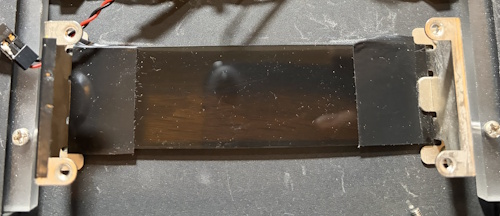
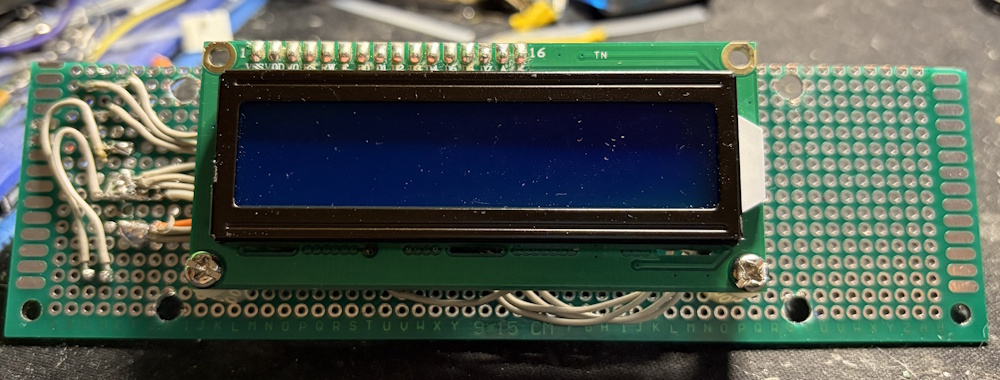
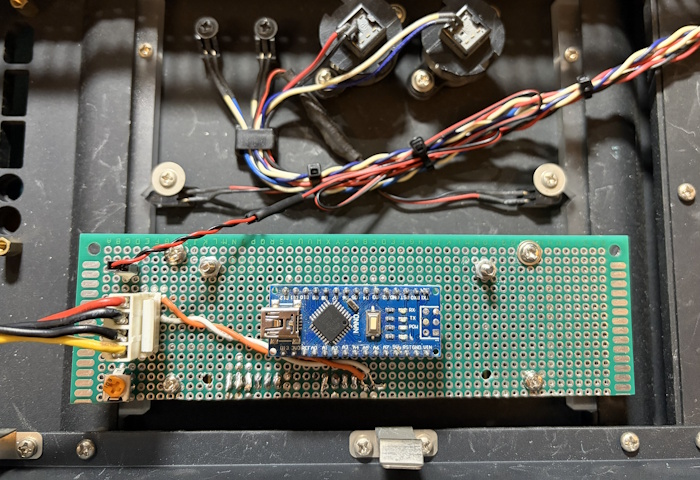
Once working, I reached into my electronics inventory and created a PCB to mount everything. I typically use a PCB design program to play with the spacing so that I’m sure I’m utilizing the PCB correctly. I kept some space for mounting hardware as there there were some nice mounting brackets (I also added the electrical tape as the LCD wasn’t as wide).
Here are a few more shots of the PCB.
 |
 |
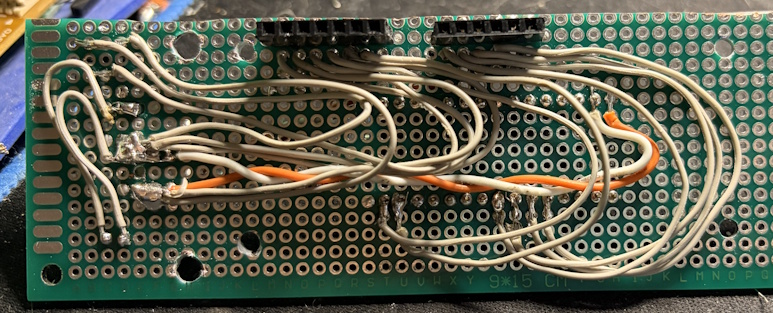 |
I was able to also wire in the blue front LED’s with a header and also used a quick disconnect for power.
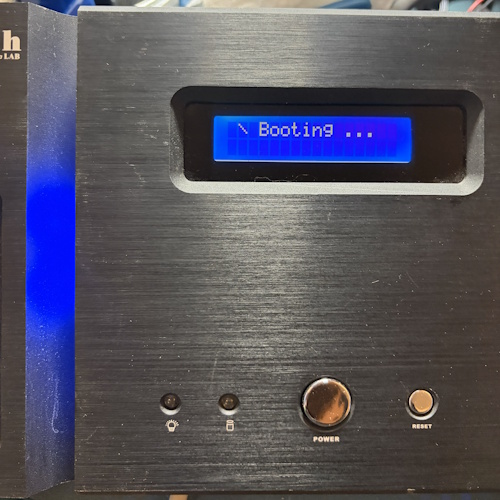
Here is the final result. As you can tell from the code, the micro-controller will start with the “Booting…” as well as a spinning animation.
To make things more useful (and since I have a USB input), I setup a serial input to the code so that I could “push” out display updates. I then used the below Python script on the PC side to push out CPU and RAM updates.
#!/usr/bin/env python3
"""
System Monitor: CPU & Memory Usage to Serial Port
Sends formatted data periodically to a serial port.
"""

import psutil
import serial
import time
import json
from datetime import datetime

# ================= CONFIGURATION =================
SERIAL_PORT = 'COM3'        # Windows: 'COMx' | Linux/macOS: '/dev/ttyUSB0' or '/dev/ttyACM0'
BAUD_RATE = 9600            # Common: 9600, 115200
UPDATE_INTERVAL = 1.0       # Seconds between updates
# ================================================

def get_cpu_usage():
    """Return CPU usage as percentage (per core and average)."""
    per_cpu = psutil.cpu_percent(percpu=True, interval=1)
    avg_cpu = psutil.cpu_percent(interval=None)  # Overall average
    return avg_cpu, per_cpu

def get_memory_usage():
    """Return memory stats in MB."""
    mem = psutil.virtual_memory()
    total = mem.total / (1024 ** 2)
    used = mem.used / (1024 ** 2)
    available = mem.available / (1024 ** 2)
    percent = mem.percent
    return total, used, available, percent

def main():
    print(f"Opening serial port {SERIAL_PORT} @ {BAUD_RATE} baud...")

    ser = serial.Serial(SERIAL_PORT, BAUD_RATE, timeout=1)
    print(f"Connected to {SERIAL_PORT}")

    print(f"Monitoring started. Sending data every {UPDATE_INTERVAL} seconds...")
    print("Press Ctrl+C to stop.\n")

    while True:
        avg_cpu = get_cpu_usage()[0]
        mem_percent = get_memory_usage()[3]

        cpu = [{
            "col": 1,
            "data": f"CPU: {avg_cpu:5.1f}%"
        }]

        mem = [{
            "col": 2,
            "data": f"   MEM: {mem_percent:5.1f}%"
        }]

        # Send to serial
        ser.write(json.dumps(cpu).encode('utf8'))
        time.sleep(.5)
        ser.write(json.dumps(mem).encode('utf8'))
        ser.flush()

        time.sleep(UPDATE_INTERVAL)

if __name__ == "__main__":
    main()