

Recent Articles
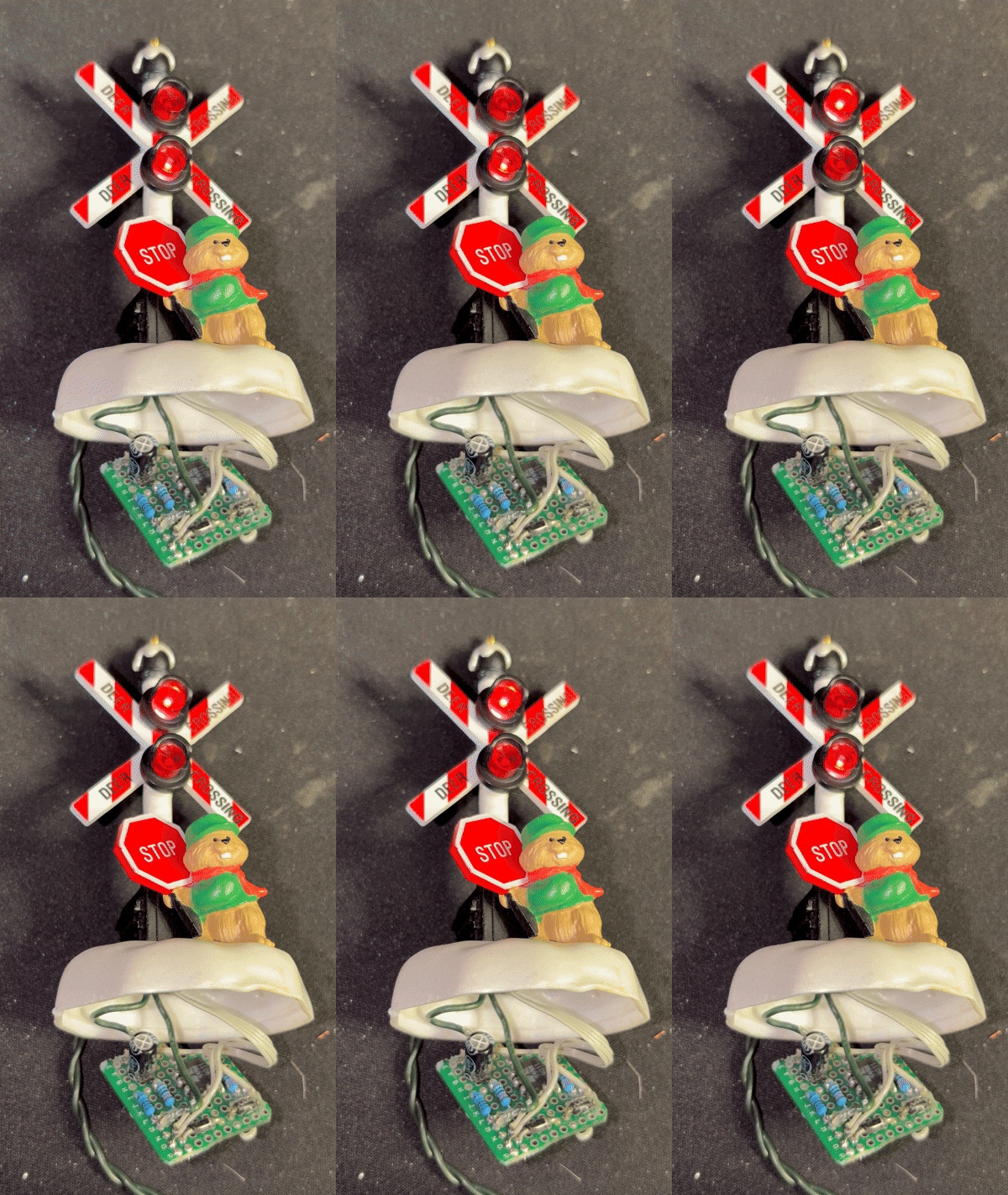 |
I found this childhood gem in my Christmas ornament bin, but due to modern times, I couldn’t power it since I switched to all LED Christmas lights. Due to that, it’s just not possible to simply connect this ornament to an LED strand, not only due to the incompatible socket, but also the way LEDs are powered from mains voltage in a strand. But, I manage to hook up the ornament, but sadly, it didn’t work. I had no choice to crack open the ornament and re-engineer it to work with LEDs. The problem as you can see, is there is a circuit that will flash between the two lights. The ornament even takes into account mains voltage with a bit of hack to get it down to the lower voltage a circuit normally requires. Back to how LED Christmas lights work – As we know a LED is a diode that creates light when current is passed. Since they are diodes, they just use the strand as a long rectifier, converting AC to DC voltage. With that said, I cannot just plug in a circuit and get 5 volts. So, I just used a simple 555 timer circuit I found online and used the components off the old board. Now that I have it wired (as you can see), I just need to have a dedicated light strand dedicated to these moving ornaments that supplies my 5 volts. |
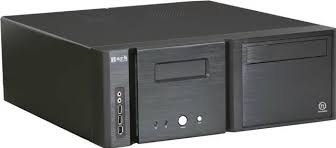
I’ve always wanted to implement an ATmega328P with an LCD screen as a replacement for a propriety one. I envisioned something more open to interface with and had USB connectivity. So one day browsing through Facebook Marketplace, I found someone selling a ThermalTake Bach for $10 with an LCD screen cutout. The case, of course didn’t have the LCD in there anymore, so my chance had arrived.
I then, naturally, reached for my breadboard and did a quick prototype to get everything working. Once complete, I then started on the firmware. Through a little trail and error, this is what I came up with:
#include <LiquidCrystal.h>
#include <ArduinoJson.h>

// Creates an LCD object. Parameters: (rs, enable, d4, d5, d6, d7)
LiquidCrystal lcd(12, 11, 5, 4, 3, 2);

// Due to char set issues, this will create the /
byte customBackslash[8] = {
  0b00000,
  0b10000,
  0b01000,
  0b00100,
  0b00010,
  0b00001,
  0b00000,
  0b00000
};

String incoming = "";
bool readingJson = false;

void setup() {

  lcd.createChar(7, customBackslash);

  Serial.begin(9600);

  // set up the LCD's number of columns and rows:
  lcd.begin(16, 2);

  // Clears the LCD screen
  lcd.clear();

  // Startup defaults
  lcd.setCursor(3,0);
  lcd.print("Booting...");
}

void flipper() {

  lcd.setCursor(1,0);
  lcd.print("/");
  delay(250);

  lcd.setCursor(1,0);
  lcd.print("-");
  delay(250);

  lcd.setCursor(1,0);
  lcd.write(byte(7));
  delay(250);

  lcd.setCursor(1,0);
  lcd.print((char) 0b01111100);
  delay(250);
}

void loop() {

  // A little animation!
  flipper();

  while (Serial.available() > 0) {
    char c = Serial.read();
    Serial.print(c);

    // Detect start/end of JSON (optional but helpful)
    if (c == '[') {
      readingJson = true;
      incoming = "";     // reset buffer
    }

    if (readingJson) {
      incoming += c;
    }

    if (c == ']' && readingJson) {
      readingJson = false;
      processJson(incoming);
    }
  }
}

void processJson(const String &jsonString) {

  // Allocate memory for JSON document
  StaticJsonDocument<256> doc;

  // Parse the JSON
  DeserializationError error = deserializeJson(doc, jsonString);
  if (error) {
    Serial.print("JSON parse failed: ");
    Serial.println(error.c_str());
    return;
  }

  // Loop through array entries
  for (JsonObject obj : doc.as<JsonArray>()) {

    int col = obj["col"];
    const char* data = obj["data"];

    if (col == 1) {
      lcd.setCursor(3,0);
      lcd.print(data);

    } else if (col == 2) {
      lcd.setCursor(0,1);
      lcd.print(data);

    }
  }
}
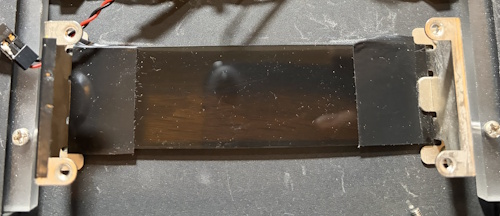
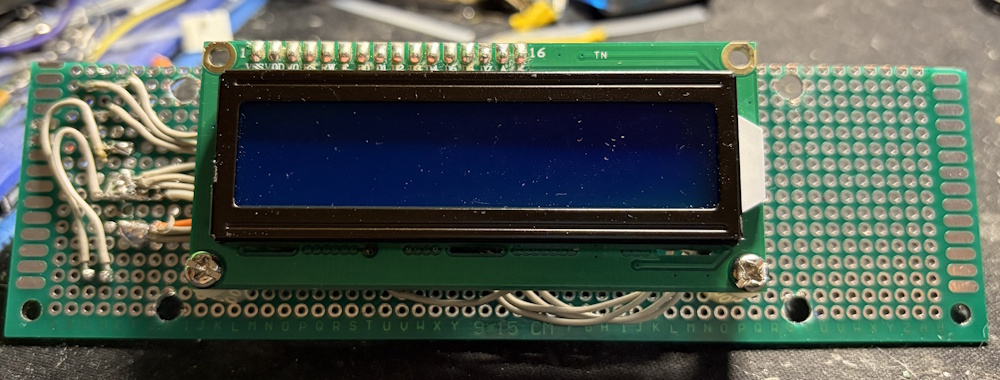
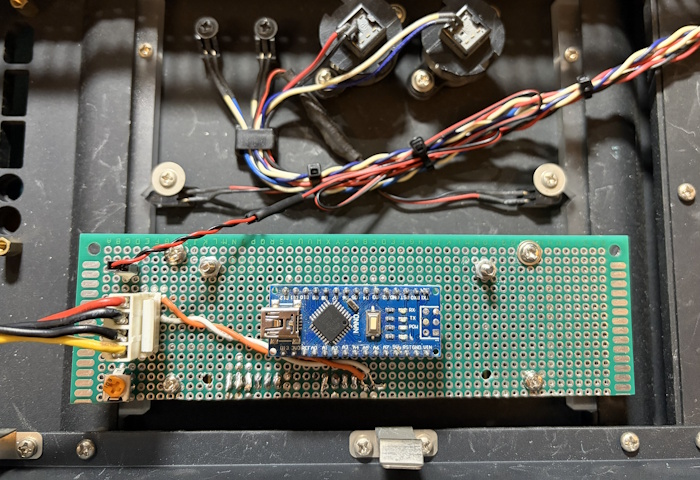
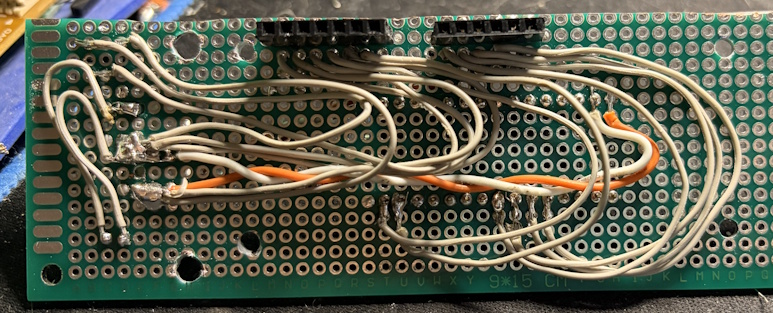
Once working, I reached into my electronics inventory and created a PCB to mount everything. I typically use a PCB design program to play with the spacing so that I’m sure I’m utilizing the PCB correctly. I kept some space for mounting hardware as there there were some nice mounting brackets (I also added the electrical tape as the LCD wasn’t as wide).
Here are a few more shots of the PCB.
 |
 |
 |
I was able to also wire in the blue front LED’s with a header and also used a quick disconnect for power.
Here is the final result. As you can tell from the code, the micro-controller will start with the “Booting…” as well as a spinning animation.
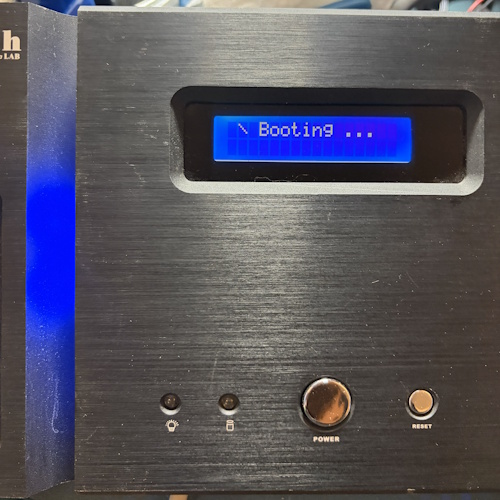
To make things more useful (and since I have a USB input), I setup a serial input to the code so that I could “push” out display updates. I then used the below Python script on the PC side to push out CPU and RAM updates.
#!/usr/bin/env python3
"""
System Monitor: CPU & Memory Usage to Serial Port
Sends formatted data periodically to a serial port.
"""

import psutil
import serial
import time
import json
from datetime import datetime

# ================= CONFIGURATION =================
SERIAL_PORT = 'COM3'        # Windows: 'COMx' | Linux/macOS: '/dev/ttyUSB0' or '/dev/ttyACM0'
BAUD_RATE = 9600            # Common: 9600, 115200
UPDATE_INTERVAL = 1.0       # Seconds between updates
# ================================================

def get_cpu_usage():
    """Return CPU usage as percentage (per core and average)."""
    per_cpu = psutil.cpu_percent(percpu=True, interval=1)
    avg_cpu = psutil.cpu_percent(interval=None)  # Overall average
    return avg_cpu, per_cpu

def get_memory_usage():
    """Return memory stats in MB."""
    mem = psutil.virtual_memory()
    total = mem.total / (1024 ** 2)
    used = mem.used / (1024 ** 2)
    available = mem.available / (1024 ** 2)
    percent = mem.percent
    return total, used, available, percent

def main():
    print(f"Opening serial port {SERIAL_PORT} @ {BAUD_RATE} baud...")

    ser = serial.Serial(SERIAL_PORT, BAUD_RATE, timeout=1)
    print(f"Connected to {SERIAL_PORT}")

    print(f"Monitoring started. Sending data every {UPDATE_INTERVAL} seconds...")
    print("Press Ctrl+C to stop.\n")

    while True:
        avg_cpu = get_cpu_usage()[0]
        mem_percent = get_memory_usage()[3]

        cpu = [{
            "col": 1,
            "data": f"CPU: {avg_cpu:5.1f}%"
        }]

        mem = [{
            "col": 2,
            "data": f"   MEM: {mem_percent:5.1f}%"
        }]

        # Send to serial
        ser.write(json.dumps(cpu).encode('utf8'))
        time.sleep(.5)
        ser.write(json.dumps(mem).encode('utf8'))
        ser.flush()

        time.sleep(UPDATE_INTERVAL)

if __name__ == "__main__":
    main()