ESP32 Automatic CAT6 Switcher
- Details
- Written by: JC
- Category: Electronic Projects
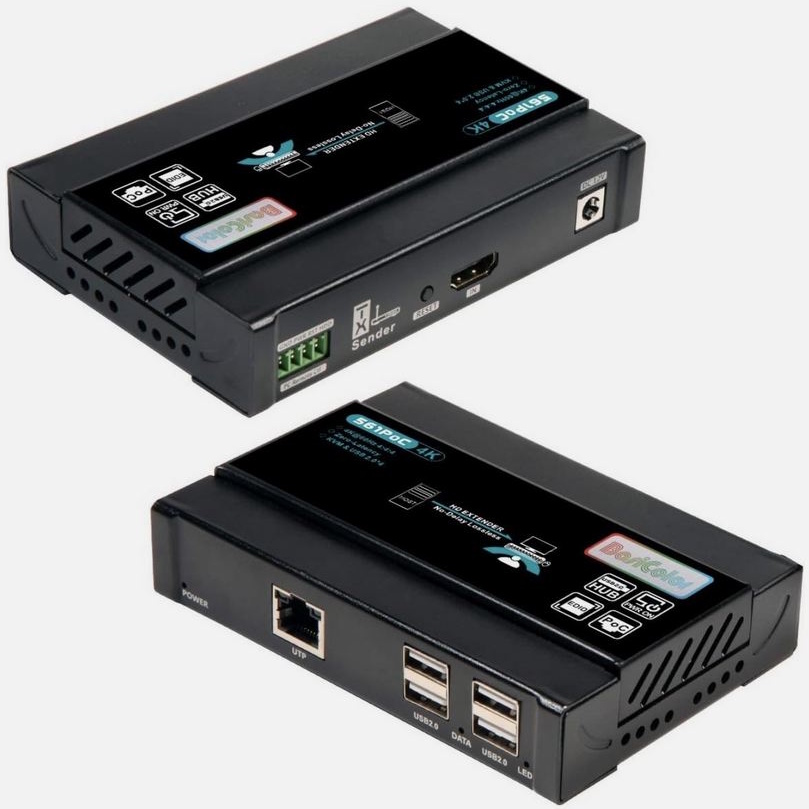
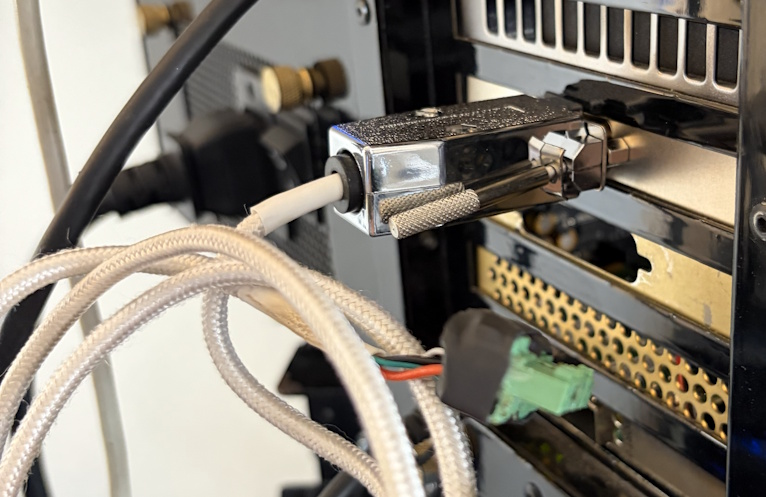
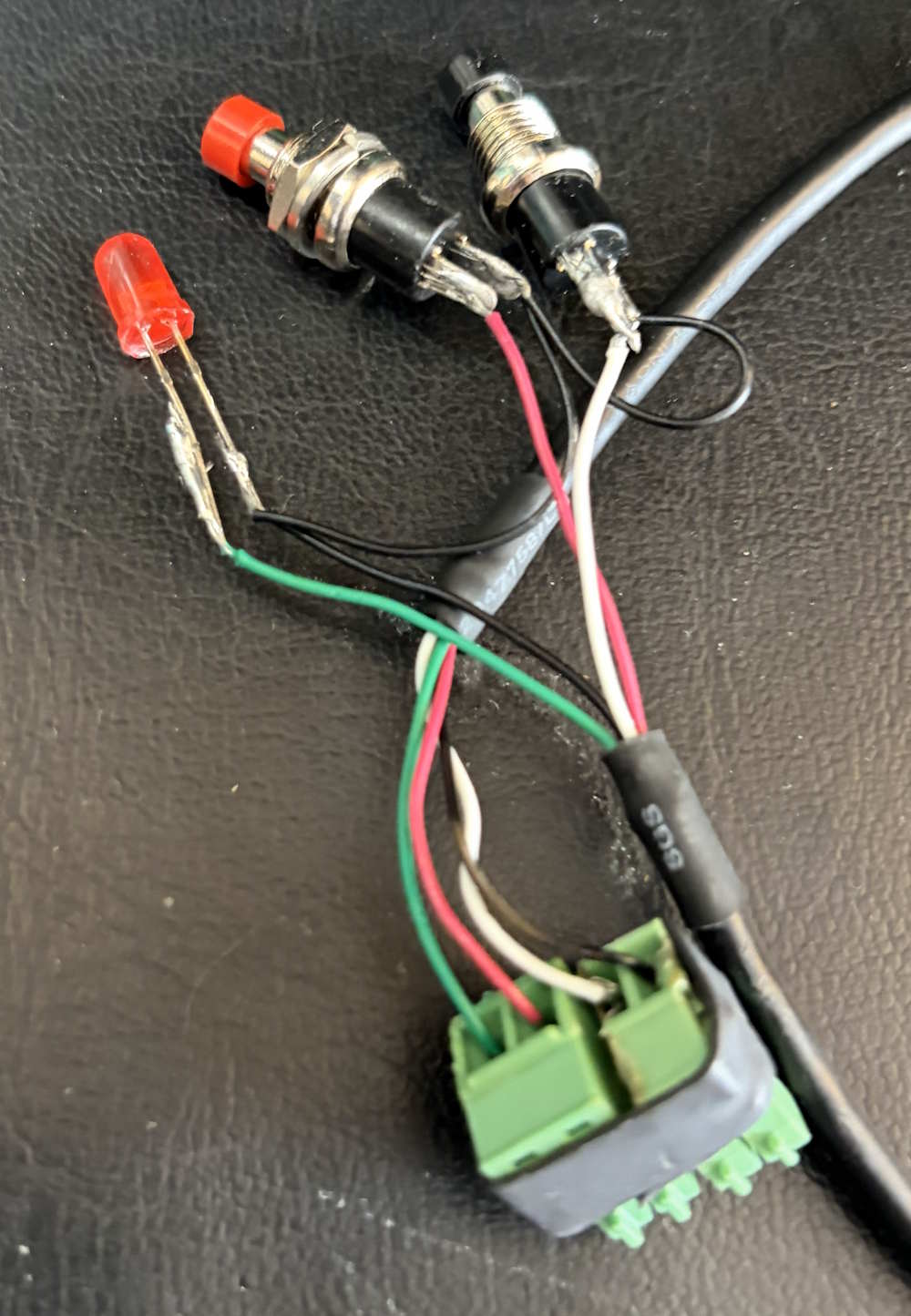
| In my new house, I wanted the ability to run my gaming PC in a separate room and play from it anywhere in the house. First, I had to find a device to accomplish that task. I did find alot of IP KVM extension type solutions, but I felt that would introduce too much latency. Fortunately, I found these KVM extension devices, which use CAT6 to connect, point-to-point. A bonus is these extensions also have PC control, which I quickly rigged up a DB9 connector on the PC side to connected to the host side and a break-out for the remote side, as you can see here. | ||
 |
 |
 |
|
Now, I realize I can just manually move cables, but I wanted to be able to switch rooms without moving cables. My first thought was a manual physical switch, which I found one like the below one on Amazon. |
||
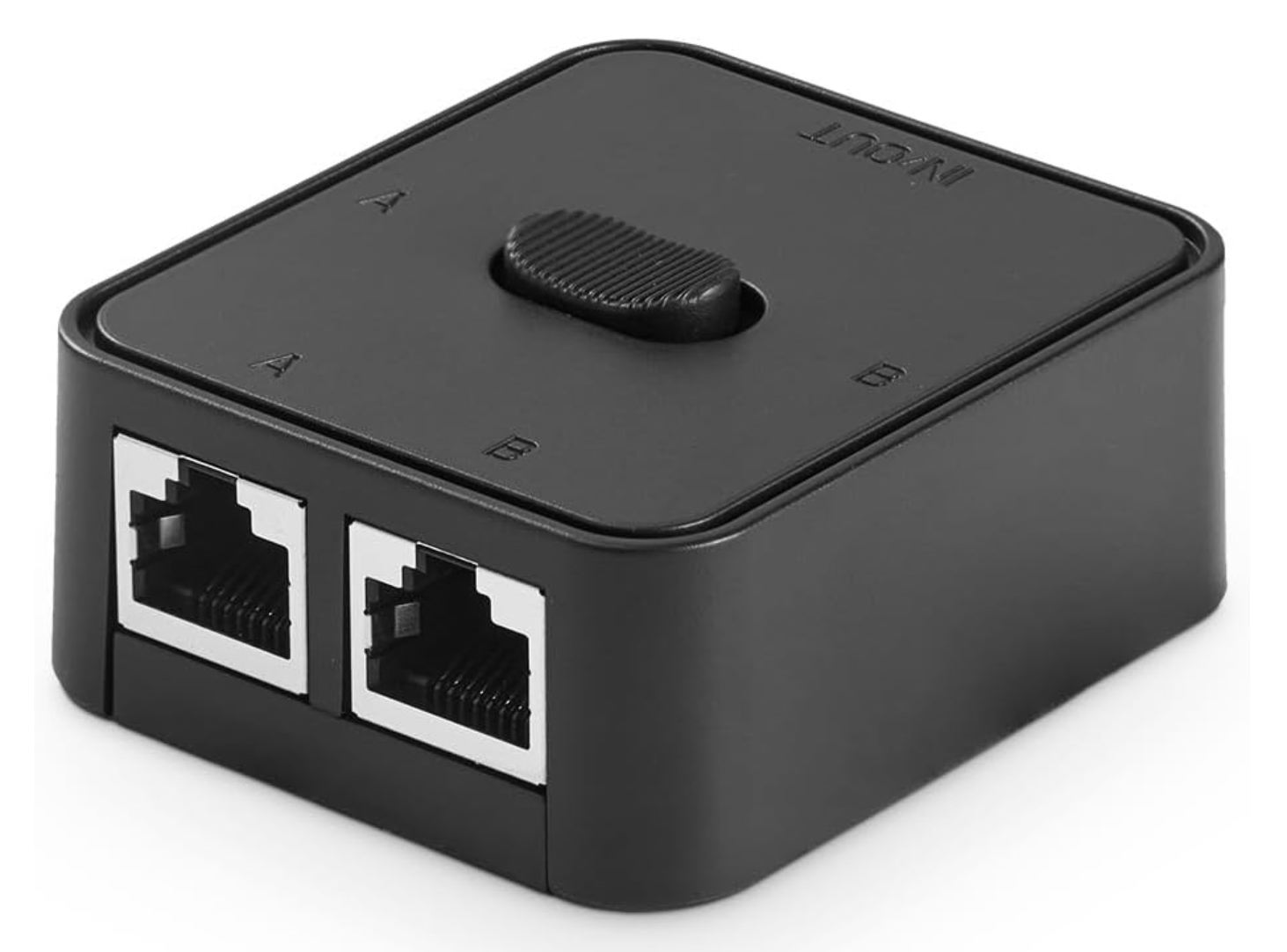 |
My brain then went immediately on how to automate that top switch, so I can switch it via software. I knew I needed something with GPIO and wireless connectivity. I’m quite familiar with the Raspberry Pi but wanted something that I didn’t need to maintain on OS. With that I remembered the ESP32 micro-controller like this one I sourced from Micro Center | 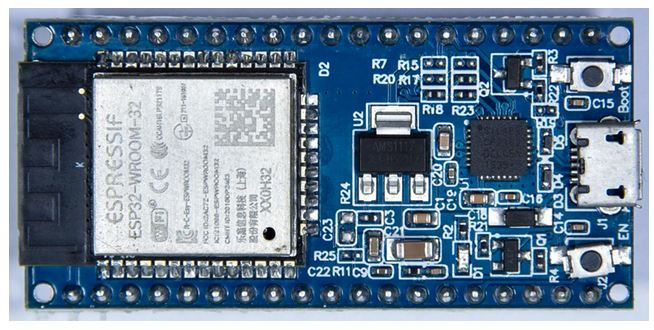 |
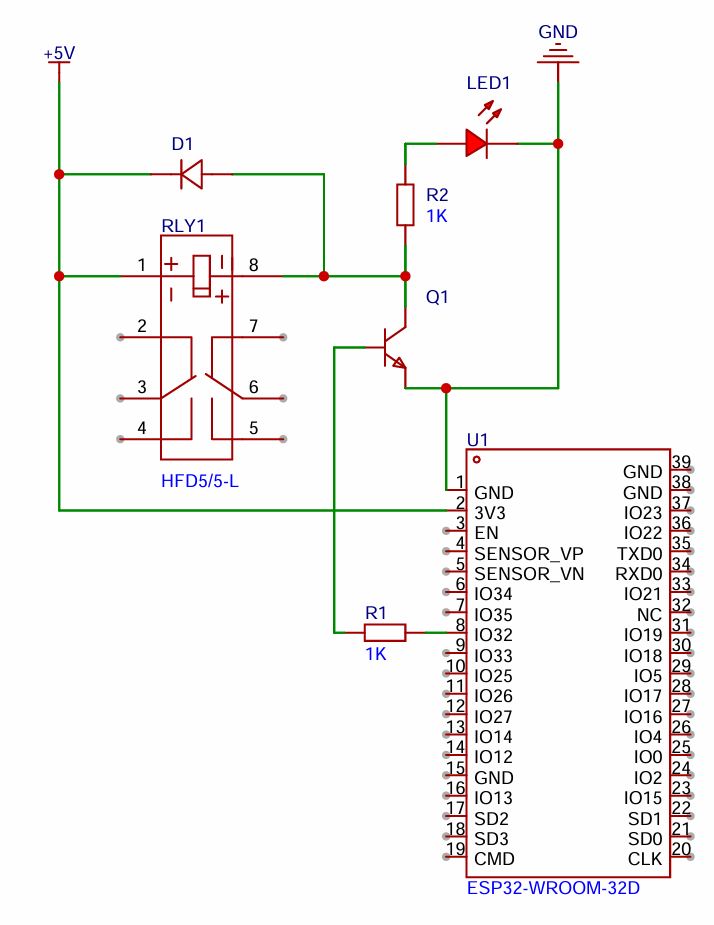
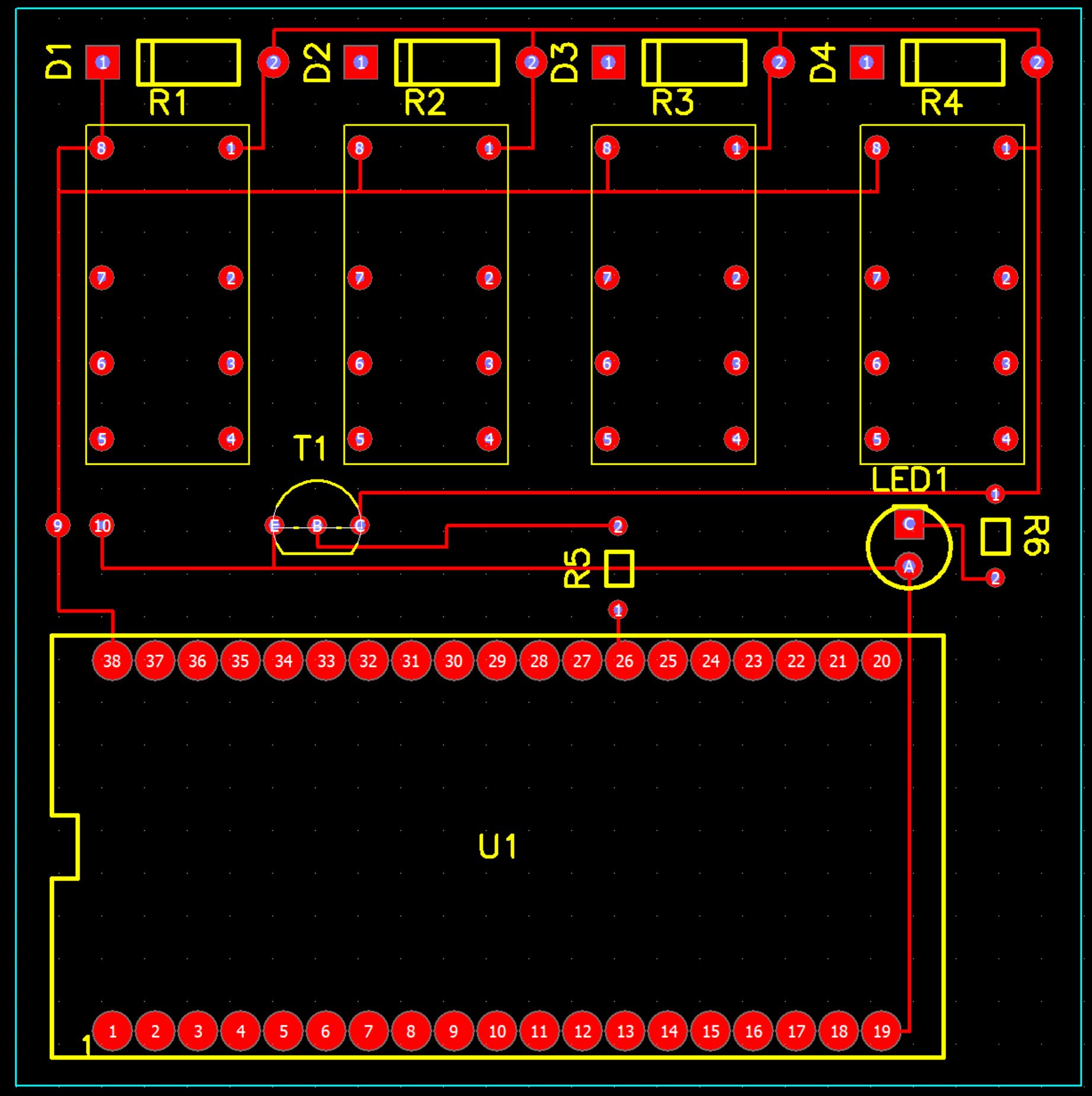
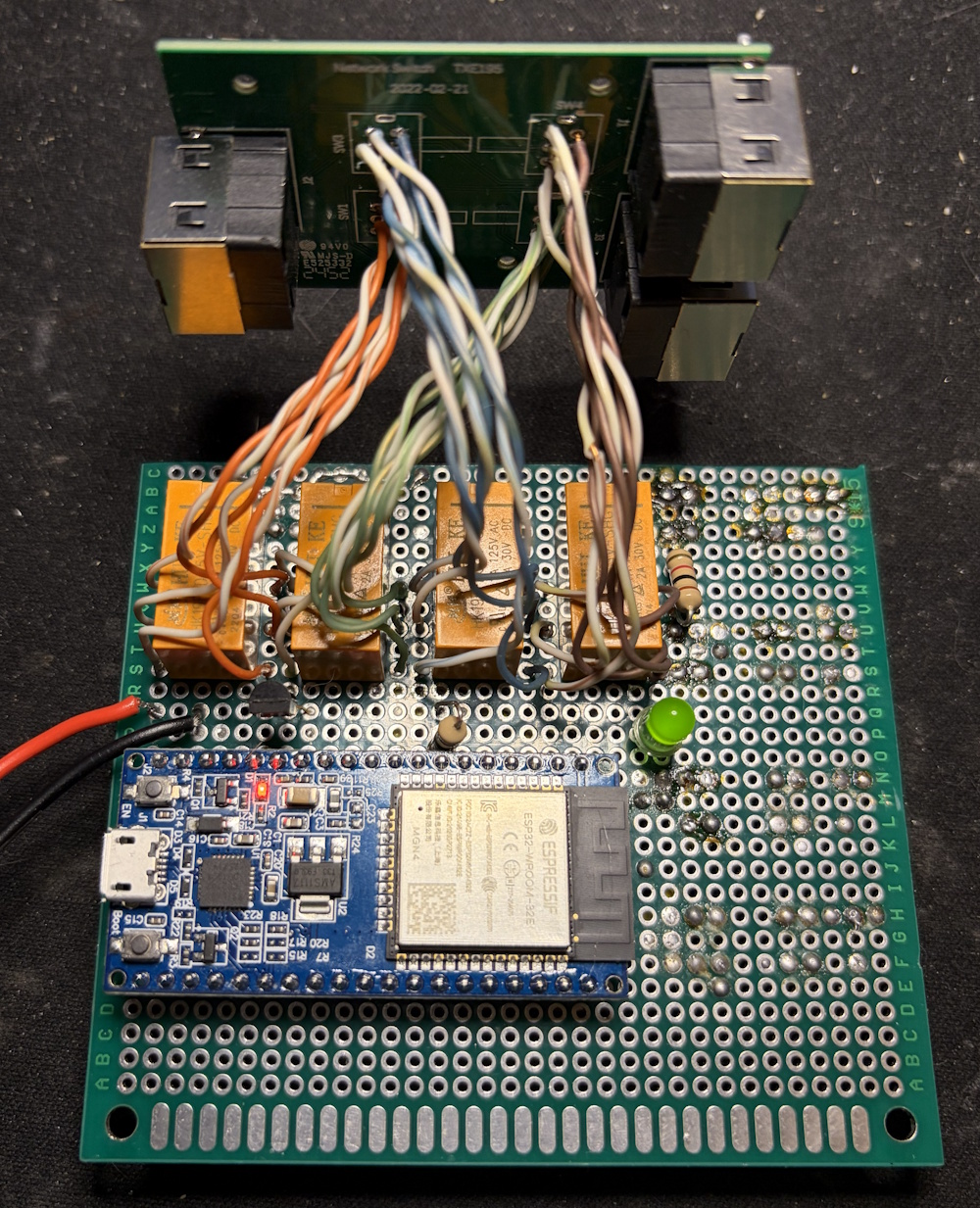
The CircuitFrom research, I found that the voltage on the GPIO pins (3.3v) isn’t enough to switch the relay. To overcome this limitation, I used the classic NPN transistor activation method, so I could use my main 5-volt input as the voltage that switches the relay. The circuit diagram to the left is for one relay, but for this project I just added on the additional three relays since I need to switch all the connection on the switch at the same time. After finished and tested the design on a breadboard, I then found a random piece of PCB prototype board and then used its dimensions in my PCB design software (Pad2Pad) so that I can effectively lay everything out and have enough room without guessing. |
 |
 |
Some additional work I had to do was map out the pinout for both the switch on my CAT6 switching device and the relays I had. I just used my multi-meter and toned out the connections. A concern I did have was if running though this device, there would be any degigation to the signal. The best I could do is make sure anything going from the relay to the swithcer maintaned the twists. |
|
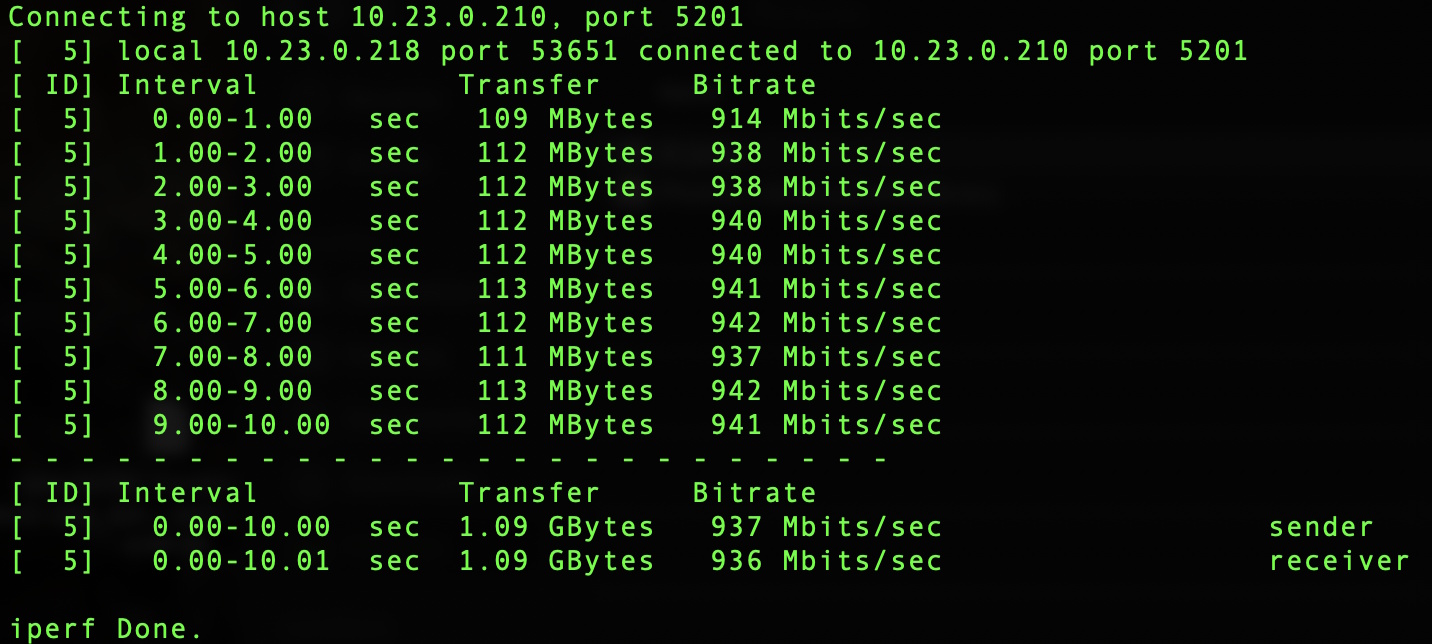
Once I had all the soldering done, I was good to test. For this I used a network tester and made sure the pinout was correct for Ethernet. My next test was to actually get network communication going though the device and see if there was any drop to performance indicating interfearance. Since I am a bit of a network engineer, I opted to use iperf3 and compare with and without the switcher inline. As you can see below I didn’t have any degration at all and was in normal range. |
 |
 |
Now that I knew networking wasn’t affected, I then tested the actual KVM extender to validate I don’t see any video problems or latency. To my satisfication I didn’t notice anything. |
|
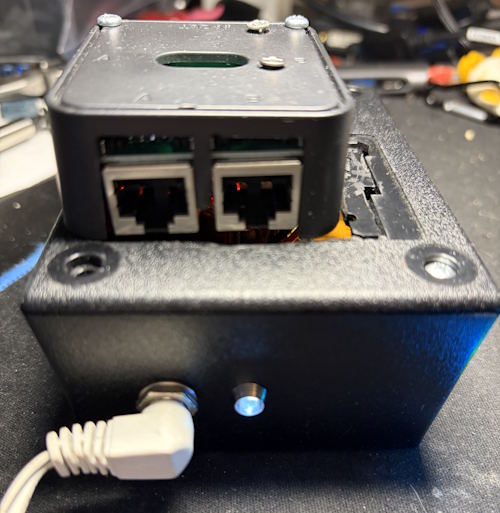
The final build just involved using a project box and mounting the existing switcher on the top. I also added a power LED so I know it’s powered. I had to use my Dremel on some spots to make things fit and it came out okay. Since it’s in a closed room, I wasn’t too concerned on looks.
|
|
The Code and OutputThe code I pieced together from AI queries. I did put the most work getting the authentication working and customizing the webpage. The downside with a low power micro controller is you cannot use encryption, meaning any password I pick is going across the network in clear text. In my use case, not a big deal as it’s for home use!
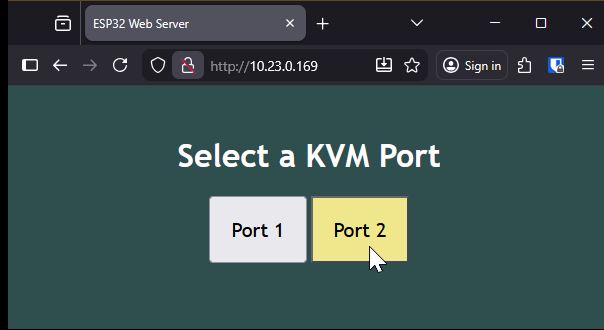
As you can see the interface is simple and to the point. It’s fun to hear the relays click when you click the buttons! Anyway, here is the code I am using. #include <WiFi.h>
#include <AsyncTCP.h>
#include <ESPAsyncWebServer.h>
const char* ssid = "";
const char* password = "";
const char* customHostname = "ESP32-NET-SW";
const char* http_username = "admin";
const char* http_password = "admin";
const int output = 32;
// HTML web page
const char index_html[] PROGMEM = R"rawliteral(
<!DOCTYPE HTML><html>
<head>
<title>ESP32 Web Server</title>
<meta name="viewport" content="width=device-width, initial-scale=1">
<style>
body {
font-family: 'Trebuchet MS';
text-align: center;
margin:0px auto;
padding-top: 30px;
background-color: darkslategrey;
color: white;
}
.button {
font-family: 'Trebuchet MS';
padding: 20px;
font-size: 20px;
}
.button:hover {
background-color: khaki;
.button:active {
background-color: #1f2e45;
}
</style>
</head>
<body>
<h1>Select a KVM Port</h1>
<button class="button" onmousedown="toggleCheckbox('off');" ontouchstart="toggleCheckbox('off');">Port 1</button>
<button class="button" onmousedown="toggleCheckbox('on');" ontouchstart="toggleCheckbox('on');">Port 2</button>
<script>
function toggleCheckbox(x) {
var xhr = new XMLHttpRequest();
xhr.open("GET", "/" + x, true);
xhr.send();
}
</script>
</body>
</html>)rawliteral";
void notFound(AsyncWebServerRequest *request) {
request->send(404, "text/plain", "Not found");
}
AsyncWebServer server(80);
void setup() {
Serial.begin(115200);
WiFi.setHostname(customHostname);
WiFi.mode(WIFI_STA);
WiFi.begin(ssid, password);
if (WiFi.waitForConnectResult() != WL_CONNECTED) {
Serial.println("WiFi Failed!");
return;
}
Serial.println();
Serial.print("ESP IP Address: http://");
Serial.println(WiFi.localIP());
pinMode(output, OUTPUT);
digitalWrite(output, LOW);
// Send web page to client
server.on("/", HTTP_GET, [](AsyncWebServerRequest *request){
if(!request->authenticate(http_username, http_password))
return request->requestAuthentication();
request->send(200, "text/html", index_html);
});
// Receive an HTTP GET request
server.on("/on", HTTP_GET, [] (AsyncWebServerRequest *request) {
digitalWrite(output, HIGH);
request->send(200, "text/plain", "ok");
Serial.print("On");
});
// Receive an HTTP GET request
server.on("/off", HTTP_GET, [] (AsyncWebServerRequest *request) {
digitalWrite(output, LOW);
request->send(200, "text/plain", "ok");
Serial.print("Off");
});
server.onNotFound(notFound);
server.begin();
}
void loop() {
// put your main code here, to run repeatedly:
}
|